
Unitrends
Overview
The Unitrends integration connects Bumblebee with Kaseya Unitrends through its Uniview portal — the centralized management hub for Unitrends Unified Backup. Query protected assets, backup jobs, and organization data across your managed environment directly from your workflows.
Prerequisites & Setup
Before setting up the Unitrends integration, you need:
- A Uniview Portal account that can manage API access credentials
- A public API Client ID and Client Secret generated from the portal
The Unitrends Uniview Portal's public API uses the OAuth 2.0 client-credentials flow. Bumblebee exchanges the Client ID and Client Secret for an access token automatically.
Step 1: Create Public API Credentials
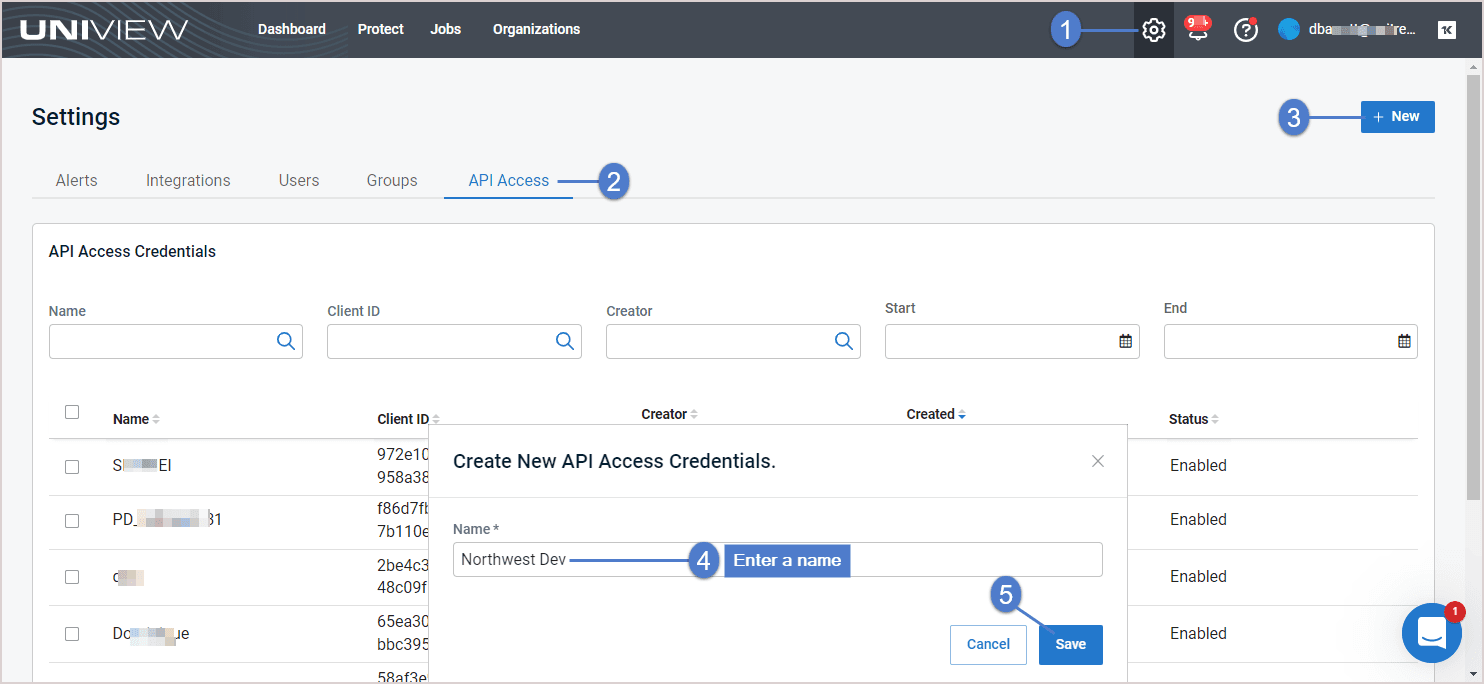
- In the Uniview Portal, click the settings (gear) icon in the top-right
- Open the API Access tab
- Click + New
- Enter a descriptive Name such as
Bumblebee, then click Save
Step 2: Copy the Client ID and Client Secret
- In the confirmation dialog, copy the Client ID and Client Secret using the copy icons
- Store both somewhere safe, then click Close
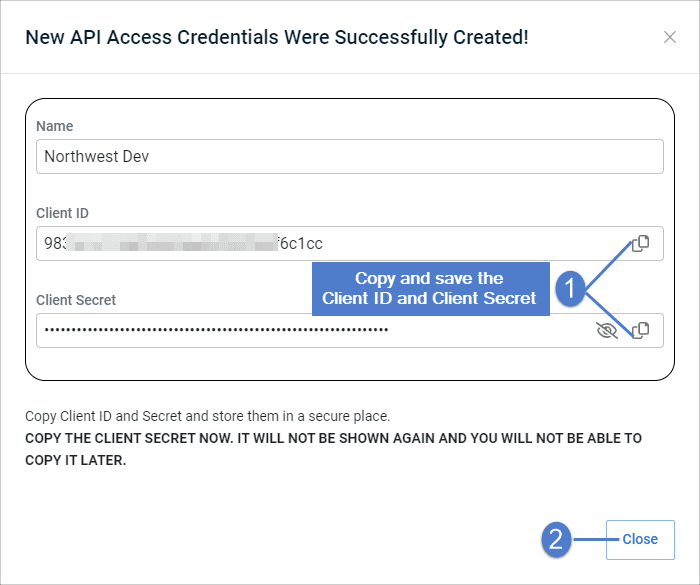
Copy the Client Secret immediately — it will not be shown again after you close the dialog. If you lose it, create a new set of credentials.
Step 3: Verify the Credentials
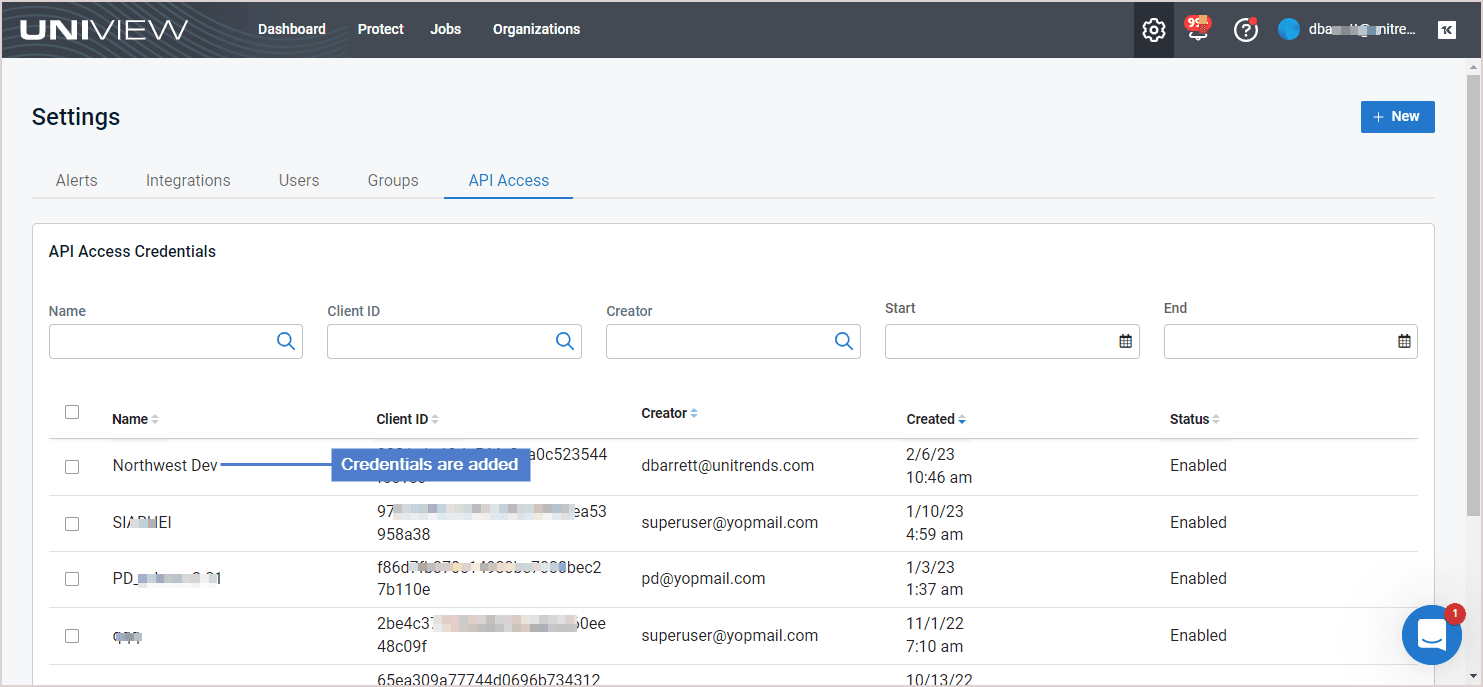
- Back on the API Access Credentials page, confirm your new entry appears with a Status of Enabled
Step 4: Configure in Bumblebee
- Go to the Integrations page in Bumblebee
- Click Unitrends
- Enter your Client ID and Client Secret
- Click Save Configuration
Available Tools
Tools for Unitrends are exposed once the integration is configured.