
Datto EDR
Overview
The Datto EDR integration gives Bumblebee read-only access to your Datto EDR (Infocyte HUNT) instance so the assistant can investigate detections and endpoint posture. Triage security alerts, inventory managed agents, pull forensic scan objects for a host or hash, and enrich findings with threat intelligence — all from a natural-language prompt.
Prerequisites & Setup
Before setting up the Datto EDR integration, you need:
- A Datto EDR instance and an administrator account
- An API access token created in the Datto EDR console
- Your instance URL (e.g.
https://your-instance.infocyte.com)
API tokens can only be created by administrators. A token inherits the permissions of the role you assign it, so give it a role that can read alerts, devices, and scan data.
Step 1: Open the Admin area
- Sign in to your Datto EDR console as an admin user
- Click your username in the upper-right corner and select Admin
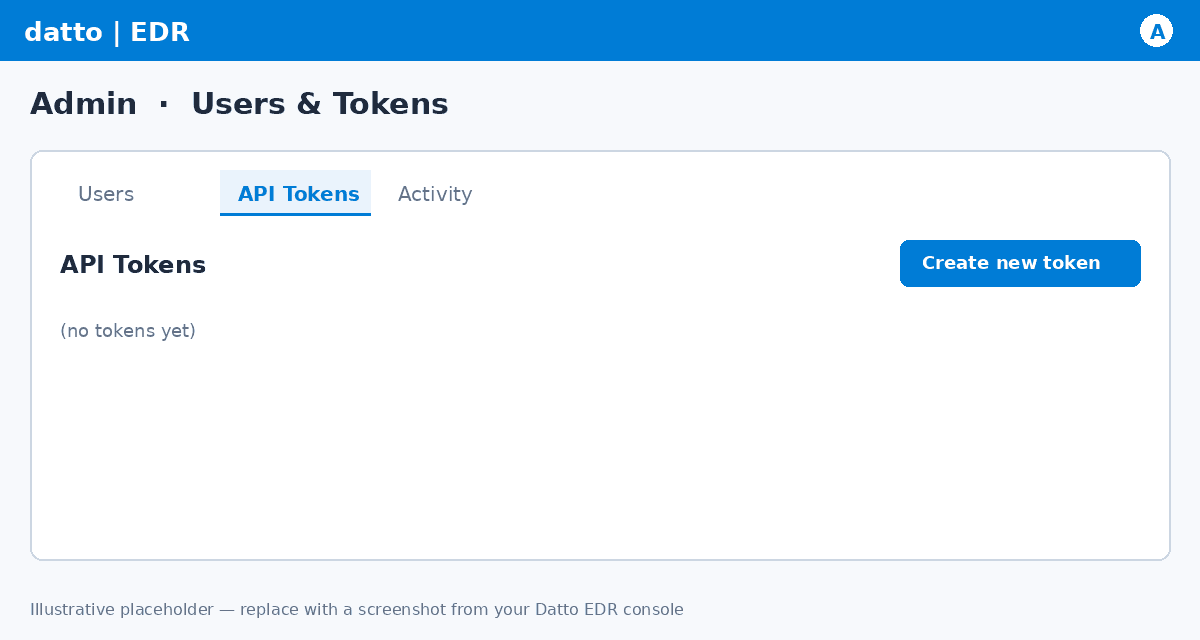
- Go to Users & Tokens > API Tokens
Step 2: Create an API token
- Click Add to create a new API token
- Give the token a descriptive name and assign it a role with permission to read the data you need
- Save, then copy the generated token immediately — it is shown only once and cannot be retrieved later
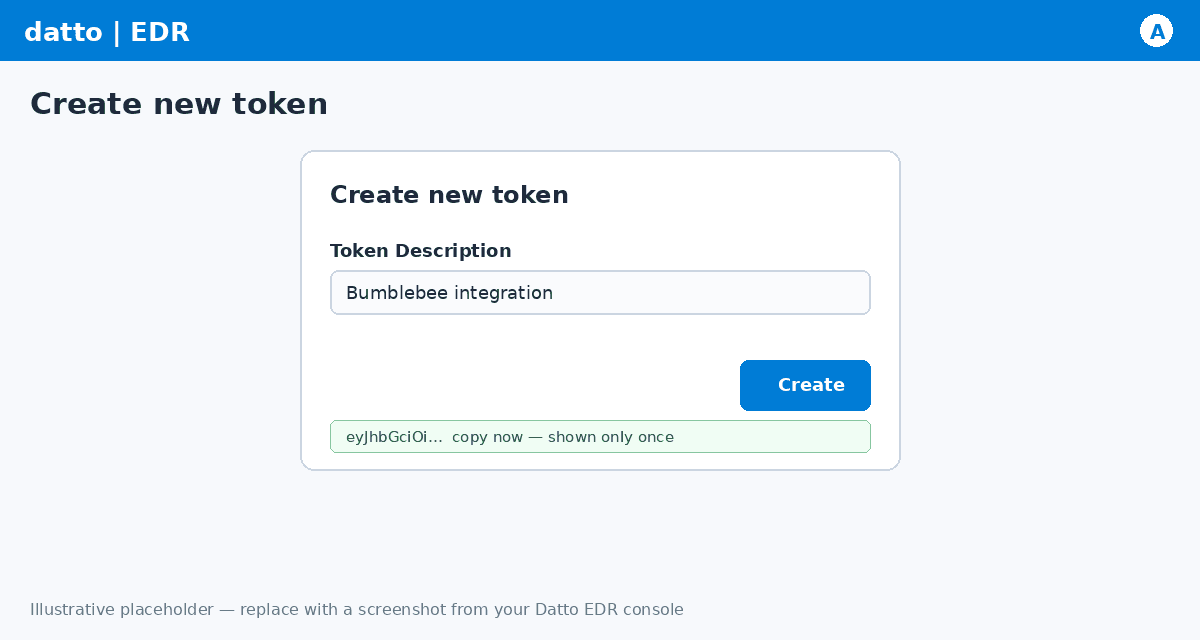
If you lose the token, delete it and create a new one — the original value cannot be recovered.
Step 3: Find your instance URL
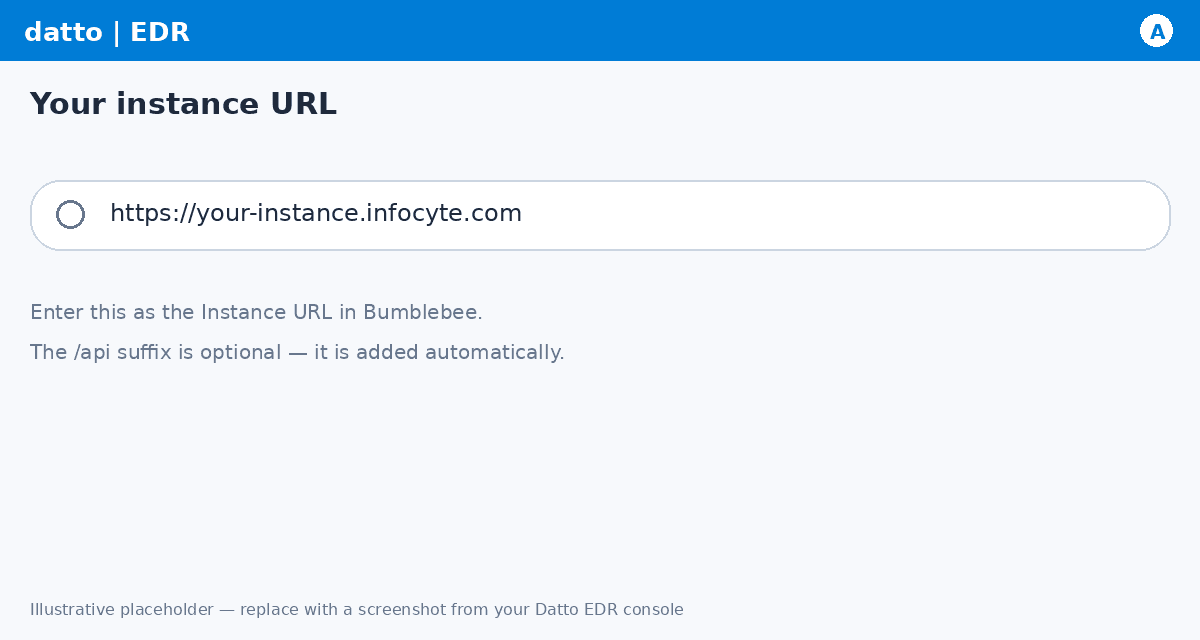
Your Instance URL is the address of your Datto EDR console — for example
https://your-instance.infocyte.com. Datto EDR is built on the Infocyte HUNT
platform, so instance URLs use the infocyte.com domain and the API is reached
at <instance>/api.
Step 4: Configure in Bumblebee
- Go to the Integrations page in Bumblebee
- Click Datto EDR
- Enter your Instance URL and API Token
- Click Save Configuration
Available Tools
A small toolset covers the Datto EDR (Pulse API) surface. Each list tool accepts
a LoopBack where filter, so use-case-specific slicing is done at query time.
Alerts
- List Alerts — List security detections from the live table, or the
historical archive (
archived=true). Filter by severity, hostname, MITRE tactic, or date viawhere.
Agents
- List Agents — List managed endpoints (agents) with their OS, agent
version, IP, authorization state, and last check-in. Filter for unauthorized
or inactive agents via
where.
Forensic Scans
- List Boxes — List forensic scan windows with per-object rollup counts. Use
a Box's
idto scope scan-object queries. - List Box Objects — One tool across eleven object tables: processes,
modules, drivers, in-memory injections, artifacts, autostarts, scripts,
network connections, applications, local accounts, and extension results. Pick
a table with
object_typeand filter by threat classification, box, or host.
Response & Threat Intelligence
- List Quarantined Files — Files the platform quarantined, with the originating alert and threat.
- Lookup File Reputation — Enrich a file by hash (SHA1/SHA256/MD5) with multi-AV reputation results.