
Cove Data Protection
Overview
The Cove Data Protection integration lets Bumblebee read from Cove, N-able's cloud backup platform. It is built for backup coverage reporting: which devices are protected, when each last backed up successfully, which ones are failing, and how much storage each client consumes.
The integration is read-only. It never starts, stops, or changes a backup, and it never modifies anything in Cove.
Note: Cove is a separate product from N-Central, with its own API and its own credentials. Connecting N-Central does not give Bumblebee access to Cove backup data, and connecting Cove does not give it access to N-Central. Set up whichever you need.
Prerequisites & Setup
Before setting up the Cove integration, you need:
- A Cove Management Console account that can manage users (Administrator or Super User)
- A dedicated API user and its token
- Your partner name as Cove spells it
Create an API user
- Sign in to the Cove Management Console as a user who can manage users
- Under Management, expand Users and select API users
- Click Add API user
- Select your own company in Customer and enter a Requested login name, for example
bumblebee-api - Select the Supporter role for read-only access
- Click Save and continue to open Copy credentials
- Copy the final login name and generated token. Use Cove's final login name, which may differ from the requested name
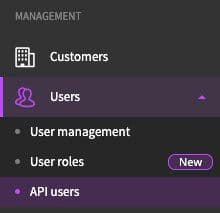
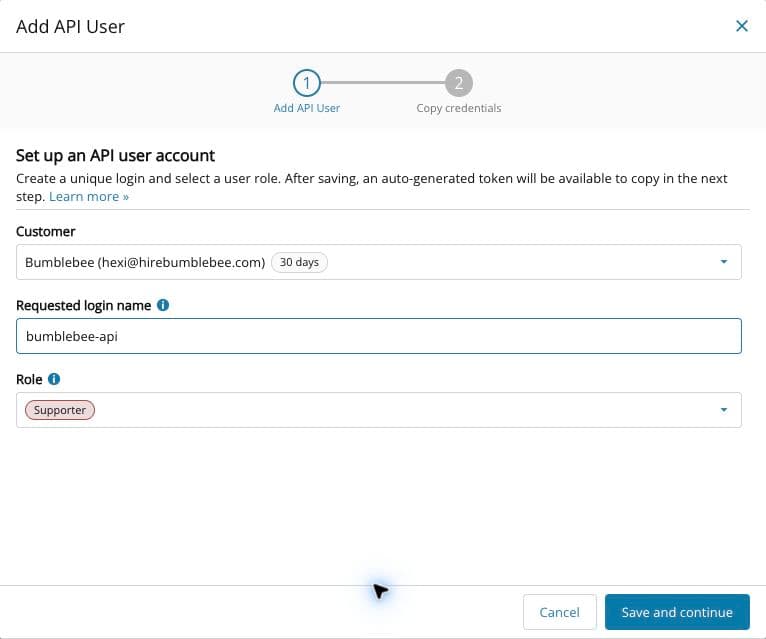
Important: The token is shown only once, at creation. Store it safely before closing the credentials step. If you lose it, create a replacement API user and update Bumblebee before removing the old user.
Find your partner name
Use the company selected in Customer when creating the API user. Select your own company to cover the customers beneath it.
Copy the full company name exactly, including spaces, punctuation, and any parenthesized text that is part of the name. Do not include the separate trial badge (for example, “30 days”). The partner name is a company name, not a domain or URL.

Configure in Bumblebee
- Go to Integrations
- Select Cove Data Protection
- Enter:
- Partner Name — your company name as it appears in Cove
- API User Name — the final login name Cove provides
- API Token — the token shown at creation
- Save the configuration
- Run a test request from the validation card
How customers work
Cove models an MSP as a tree: your own company sits at the root, and each client is a partner beneath it. Every tool takes a partner_id, and every one of them defaults to your root — so unless you name a client, a question covers your whole book at once.
That makes "how many devices failed their last backup across all my clients?" a single call, and "how is Contoso doing?" a matter of resolving Contoso to its partner ID first.
Available Tools
All tools are read-only.
Finding a client
- enumerate_partners — List the customers beneath a partner in your tree. Call this to resolve a client name to the
partner_idthe other tools take. Returns each partner's ID, name, level (Reseller, EndCustomer, Site, and so on), state, and company details.
Device inventory
- enumerate_accounts — List the protected devices and Microsoft 365 domains under a partner. Returns each account's ID, name, type (Backup Manager, Office 365, or G Suite), profile, storage location, and creation and expiry dates. Use it for inventory questions; use the statistics tool below for backup status.
Backup status and statistics
- enumerate_account_statistics — The reporting workhorse. One call returns a row per device with whichever columns you ask for: last backup status, last successful backup time, selected and used storage, error counts, active data sources, and Microsoft 365 mailbox counts. Supports filtering, sorting, paging, and server-side totals.
What you can ask
Once connected, you can ask Bumblebee questions like:
- "Which devices haven't had a successful backup in the last week?"
- "Show me backup coverage for Contoso — what's protected and what isn't"
- "How much backup storage is each client using?"
- "List every device whose last backup completed with errors"
- "Which clients have Microsoft 365 backup enabled, and how many mailboxes are protected?"
- "Give me a backup status summary for last month, by client"
How backup status is reported
Cove reports each device's backup state as a numeric status. Bumblebee understands these and will describe them in plain language:
| Status | Meaning |
|---|---|
| Completed | The last backup finished cleanly |
| Completed with errors | The backup finished but some items failed |
| Failed | The backup did not complete |
| Aborted / Interrupted | The backup was stopped before finishing |
| Not started | No backup has run |
| Over quota | The device exceeded its storage allowance |
| No selection | Nothing is selected for backup |
Alongside the status, each device carries the timestamp of its last successful backup — usually the more useful number for a coverage report, because it is unaffected by a single failed run.
Limitations
- Device-level, not job-level. Bumblebee reports each device's current backup state and last successful backup time. Per-job history (every session, with its own start time and outcome) is not part of this integration; N-able exposes it only through an undocumented endpoint.
- No executive-summary PDFs. Cove's own generated PDF reports cannot be retrieved through this API. Bumblebee builds reports from the underlying data instead.
- No backup control. Starting, stopping, or reconfiguring backups is out of scope by design.
Troubleshooting
"Login returned no visa" — the user does not have API access. Confirm it is an API user, or that API Authentication is enabled on the console user.
A client is missing from the answers — the API user's role or position in the tree may not reach that customer. Check that the user sits at your root partner.
Authentication works but a call is refused — the read-only Supporter role may be too narrow for that call. Try the Operator role, which is still read-only for devices and customers.