
Datto RMM
Overview
The Datto RMM integration enables automated management of sites, devices, alerts, jobs, and audit data through Bumblebee workflows. Monitor endpoints, resolve alerts, and run scripts across your managed environment.
Prerequisites & Setup
Before setting up the Datto RMM integration, you need:
- An active Datto RMM account with an active user account
- API access enabled for your Datto RMM account
- An API Key and API Secret Key generated for your user
Any active user can have access to the API. If a user account gets inactivated or deleted, the user's previously generated API keys will be invalidated.
When making requests to the API, user security level restrictions are ignored. All API keys generated for an account will grant the same access.
Step 1: Enable API Access
- In Datto RMM, navigate to Setup > Global Settings > Access Control
- Turn on the Enable API Access toggle

Step 2: Generate API Keys for a User
- Navigate to Setup > Users, and click the username you would like to enable API access for
- Click Generate API Keys to generate an API Key and an API Secret Key for this user
- Copy and save the API Key, API Secret Key, and API URL somewhere safe
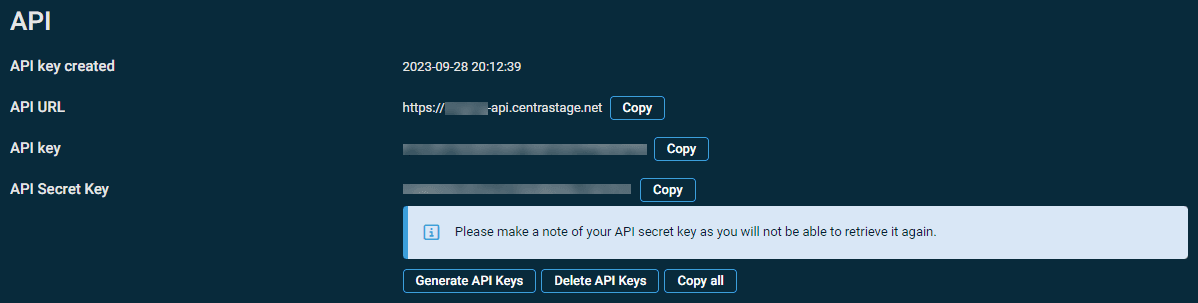
The API Secret Key will be hidden for security reasons after navigating away from this page. It will not be possible to retrieve it again. You can regenerate API keys at any time by clicking Generate API Keys, but this will invalidate any keys previously generated. Clicking Delete API Keys will revoke access altogether.
- Click Save User
- Repeat for any other user account that requires API access
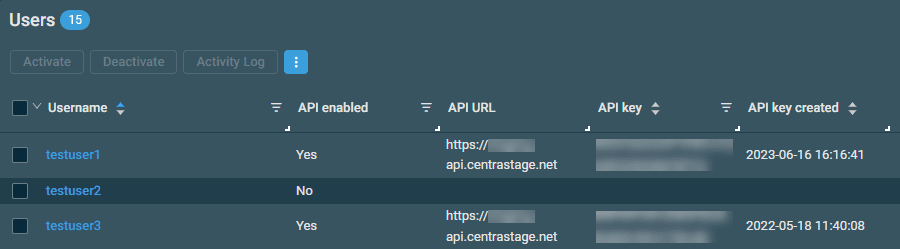
You can verify API access is configured by checking the API-related columns on the Setup > Users page.
Step 3: Configure in Bumblebee
- Go to the Integrations page in Bumblebee
- Click Datto RMM
- Enter your API Key, API Secret Key, and API URL (shown on your user profile after generating keys)
- Click Save Configuration
Available Tools
Account
- Get Account — Retrieve account information and device statistics
Sites
- List Sites — List all sites with device counts and status
- Get Site — Get details for a specific site
Devices
- List Devices — List all devices with filtering by hostname, type, OS, or site
- List Site Devices — List devices within a specific site
- Get Device — Get full device details by UID
- Get Device by ID — Look up a device by its numeric ID
Alerts
- List Open Alerts — List all open alerts across the account
- List Device Alerts — List open alerts for a specific device
- Get Alert — Get details for a specific alert
- Resolve Alert — Resolve an open alert
Audit
- Get Device Audit — Retrieve hardware, OS, and system audit data
- Get Device Software — List installed software on a device
Jobs
- Create Quick Job — Run a script or component on a device
- Get Job — Get job execution status
- Get Job Results — Get job output for a specific device