
Datto Backup
Overview
The Datto Backup integration connects Bumblebee to Datto's unified REST API (api.datto.com), which covers all of Datto's backup product families through a single key pair:
- BCDR — SIRIS/ALTO/NAS appliances, their protected agents and shares, backup snapshots with verification results, alerts, and VM restores
- SaaS Protection — Microsoft 365 / Google Workspace backup: protected domains, seats, and per-application backup history
- Direct-to-Cloud — Datto Endpoint Backup (for PCs, with Disaster Recovery, and for Microsoft Azure): asset backup status, storage pools, and RMM deployment templates
- Reporting — portal activity/audit logs across all products
This integration is read-only and focused on reporting use cases: backup-health summaries, per-customer protection coverage, verification status, and audit trails.
For Datto's own documentation on enabling REST API access, see Using the REST API with Datto SaaS Protection and the Datto REST API guide for BCDR (SIRIS, ALTO, and NAS).
Prerequisites & Setup
Before setting up the Datto Backup integration, you need:
- A Datto Partner Portal account with admin access
- An API key pair (public + private key) created in the portal
The Datto REST API uses HTTP basic authentication: the public key is the username and the private key is the password. The rate limit is 10,000 requests per hour per organization.
Step 1: Open Integrations in the Datto Partner Portal
- Sign in to the Datto Partner Portal
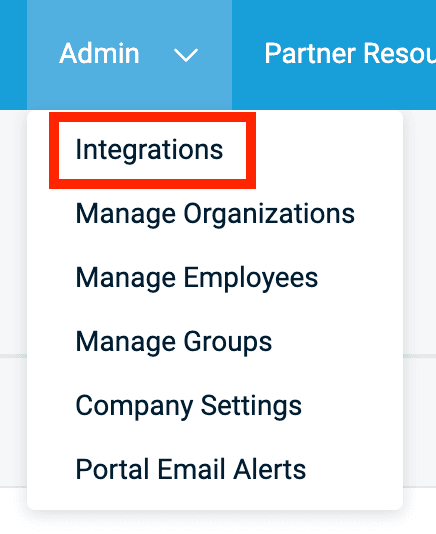
- In the top navigation, open Admin > Integrations
Step 2: Create an API Key
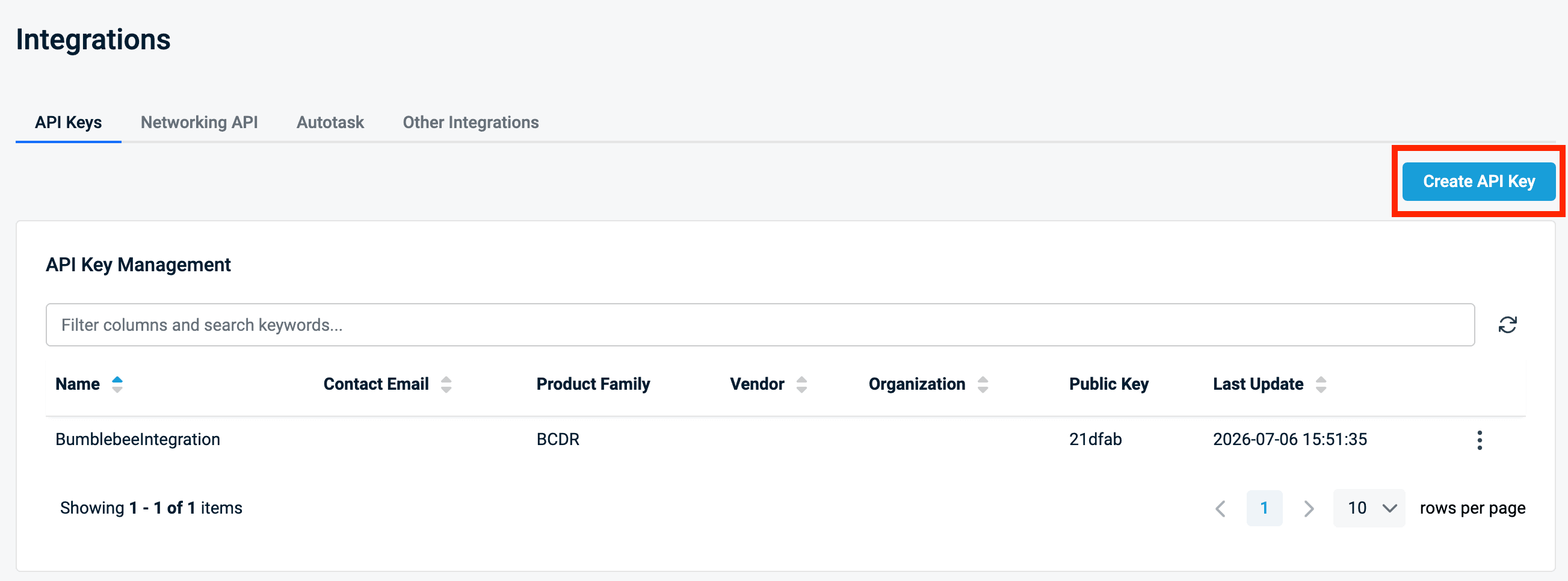
- On the Integrations page, stay on the API Keys tab
- Click Create API Key
Step 3: Name and Scope the Key
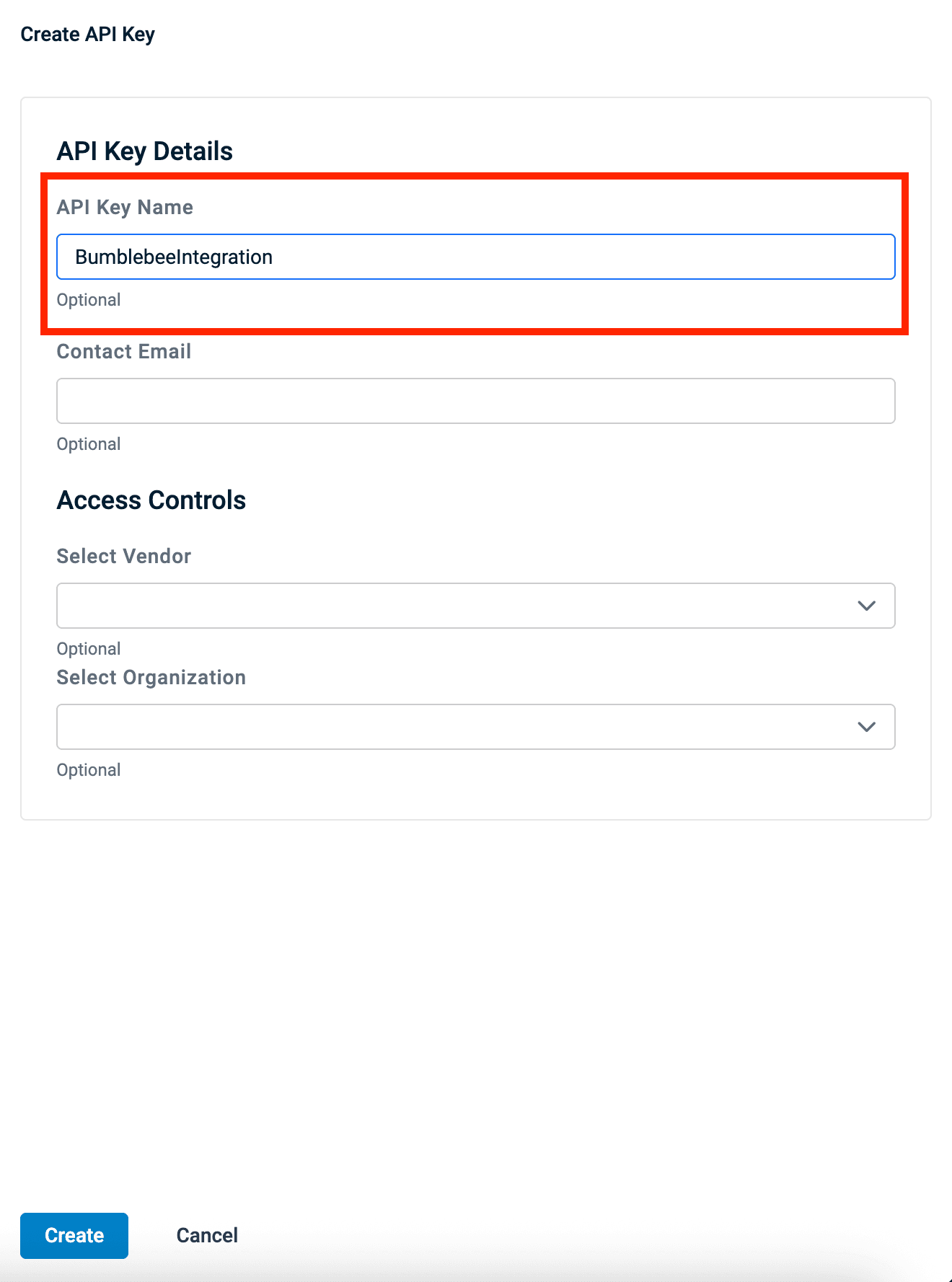
- Enter an API Key Name (e.g. BumblebeeIntegration)
- Optionally set a Contact Email
- Under Access Controls, leave Select Vendor empty — do not restrict the key to a vendor (product family)
- Optionally restrict the key to specific organizations via Select Organization — supported, but not recommended
- Click Create
Restricting the vendor cuts off entire product families from the integration, and an organization restriction filters every API result to that organization. Leave both empty so reporting covers your whole Datto estate.
Step 4: Copy the Public and Private Keys
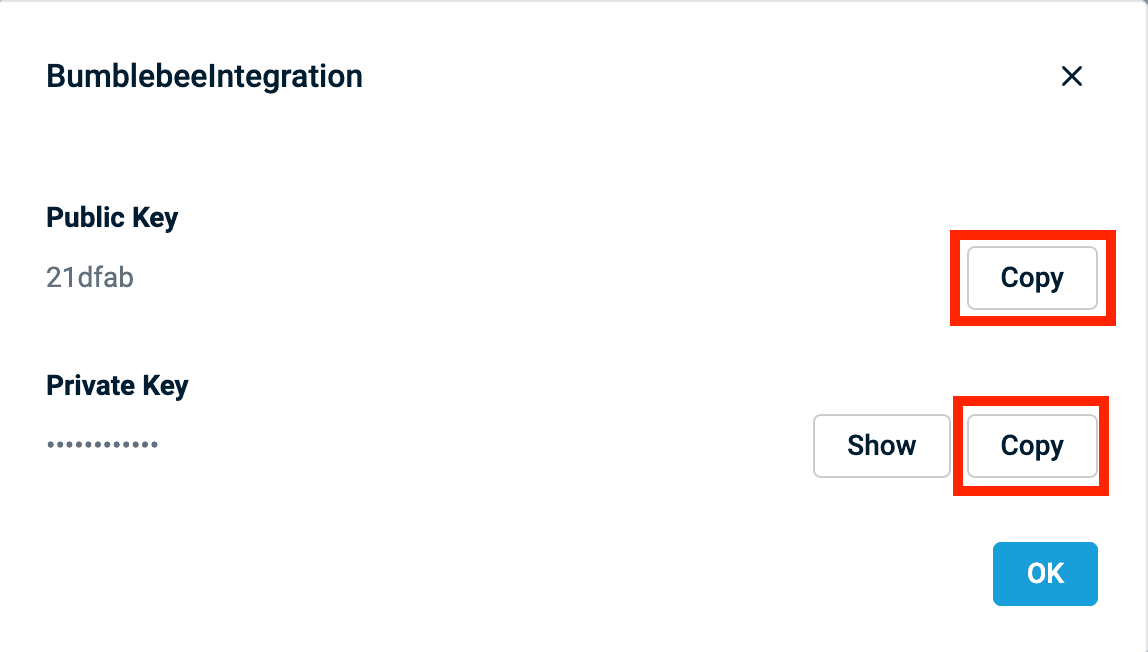
- In the confirmation dialog, click Copy next to the Public Key
- Click Show / Copy next to the Private Key and save it somewhere safe
Step 5: Configure in Bumblebee
- Go to the Integrations page in Bumblebee
- Click Datto Backup
- Enter your Public Key and Private Key
- Click Save Configuration
Available Tools
Each Datto product family is exposed as a single tool that can query multiple resources.
BCDR
- Get BCDR Resources — Query clients and cloud-continuity agents, appliances (devices), per-device assets (agents and shares) with backup snapshots and verification results, alerts, and VM restores
SaaS Protection
- Get SaaS Protection Resources — Query protected Microsoft 365 / Google Workspace domains (with backup success stats), per-customer protected seats, and per-application backup history
Direct-to-Cloud
- Get DTC Resources — Query endpoint backup assets with backup state and last-10-backup history, storage pool usage, and RMM deployment templates
Reporting
- List Activity Logs — Filtered portal activity/audit logs: who did what, when, from where, with success flags
Example Use Cases
- "Which of my BCDR appliances have assets whose last backup failed verification?"
- "Give me a backup success report across all SaaS Protection domains for the last week"
- "How many protected seats does each SaaS Protection customer use, broken down by seat type?"
- "Show portal activity for client Acme in the last 7 days"